

How To Create 5.1 Surround Sound In Audacity
Create .AC3 with Audacity
I needed afree software that would take multi-track projects and direct them to 5.1 or 7.1 channels, and encode the output into .AC3 files.
Audacity is the answer, but I had to do some home improvements. First, the ffmpeg library has to be installed. It's not hard, but you do have to know what you are doing.
First, the Audacity manual on ffmpeg (click on the link in the box, it gets you there:
tells you where to find the library:
After it has been d o wnloaded, you go to Audacity, then select <Edit>, then <Preferences>, then <Libraries> and then between the Audacity Manual (above) and the <Libraries> window, you will be able to install the ffmpeg library.
BUT THAT'S NOT ALL.
You have to go back to <Preferences> and choose <Import/Export> and within that dialog box there is under <Export> the choice of Stereo or Custom Mix. You have to choose Custom Mix or you will get stereo always.
Now you are in business. The following is a mixing graph for the piece "Milk Cow Blues" from the UK site http://www.cambridge-mt.com/ms-mtk.htm and credit for this goes to Angela Thomas Wade's 'Milk Cow Blues'.
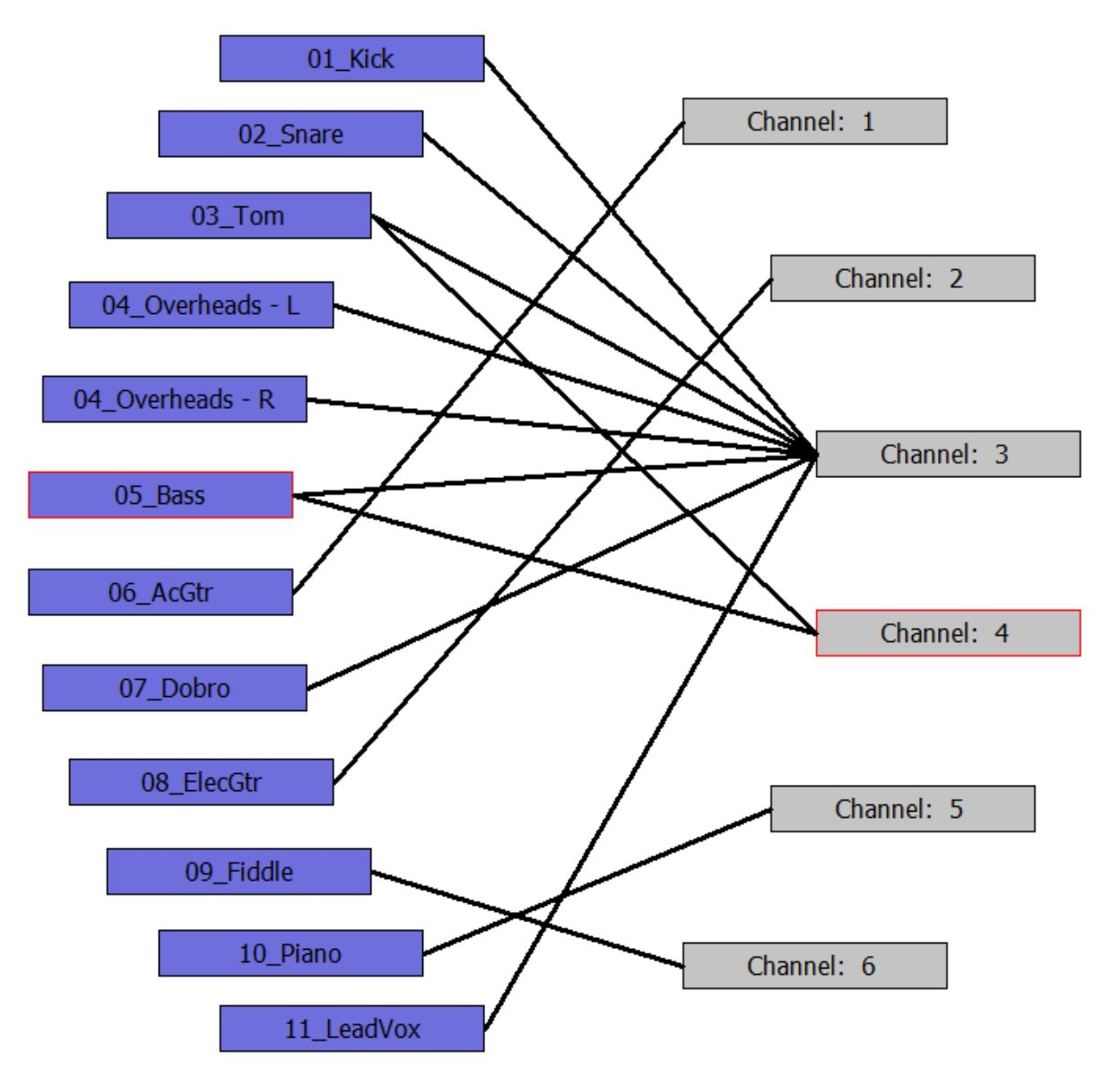
Of course, you can hear or download this mixed .AC3 song from http://discretemono.com for FREE.
Audacity uses a point-to-connect between the sources and the output channels. Dolby 5.1 uses 5 channels plus sub-woofer, encoded as Ch3 for Center, Ch4 for sub-woofer. Ch. 1 is for Left, Ch. 2 is for Right, and Ch. 5 is for Outside Left, Ch.6 for Outside Right.
The spatial mixing approach for Sound Stage listening is much as you would expect, given this is for discrete mono playback: all drums in the center (Ch.3), Lead Vox in the Center (Ch.3). Subwoofer (Ch.4) takes the Tom Tom and the Bass.
After this it's a matter of choice. I placed the piano Outside Left (Ch.5) to define the extreme range on the left and the fiddle correspondingly on the Outside Right (Ch.6). I separated the Acoustic Guitar and the Electric Guitar (left Ch.1 and right Ch.2) on each side of the Lead Vox. The Dobro went with the Lead Vox (Ch.3), and I stuck the actual Bass also in Ch.3 (maybe I should have used Ch.5 Outside Left or Ch. 6 Outside R.
Done. Takes about 30 secs. Then the encoding takes another 30 seconds and you are ready to listen.
Of course, it gets harder with 40 tracks, but that is fun. The graph was made just with the screen snipping tool which comes with Windows.
Any equalization for bringing out more volume (or less) can be done in Audacity before final mixing (or on a subsequent pass). Of course, you won't need phase or reverb for those stereo effects.
If you find this interesting, go to the UK Cambridge site and do it for yourself. Even if you don't have a Sound Stage with appropriate equipment, you can still enjoy (remarkably) the separation and clarity of 5.1 in your headphones (much better than with ambient stereo speakers — don't know why), until you pony up for 5 mono powered speakers and an HDMI decoder, or a home theater system with 5 B&Ws and a subwoofer. By the way, if you don't enjoy the Loudness Wars, then don't use stereo speakers, but instead use reference monitors. You want that clean clear sound.
How To Create 5.1 Surround Sound In Audacity
Source: https://medium.com/@discrete.mono/create-ac3-with-audacity-68d4ea1ade88
Posted by: tilleymeens1968.blogspot.com
0 Response to "How To Create 5.1 Surround Sound In Audacity"
Post a Comment